I spent three years doing procurement, vendor comparison, cost analysis, and MIS reporting at Ablaze Electronics — almost all of it in Excel. Quotations, manpower calculations, BOQ rate analysis, monthly reports for management — if it involved numbers, it lived in a spreadsheet. So when I say AI tools for Excel have genuinely changed in the last year, that's not a researcher's opinion. It's the opinion of someone who has built 64-camera CCTV cost breakdowns and switchgear factory manpower sheets by hand, the slow way, and now sees how much of that could be faster today.
This guide covers the AI tools for Excel and Google Sheets that are actually worth your time in 2026 — sorted by the job you're trying to do, not by which one launched most recently.
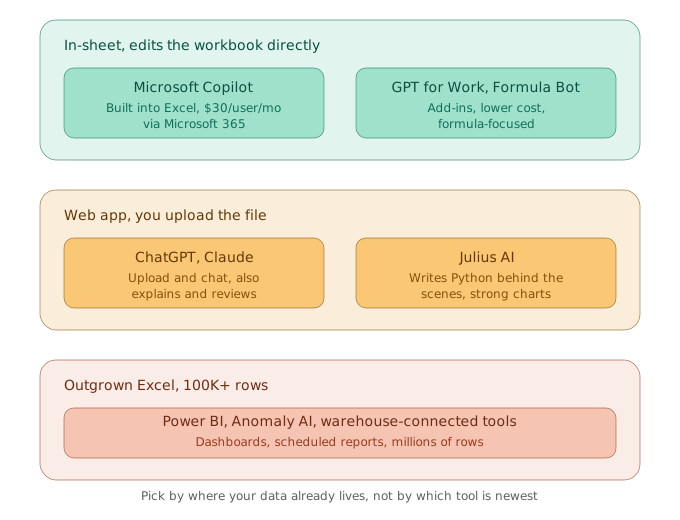
Before picking a tool, figure out which of these three buckets your work actually falls into — that decision matters more than which specific tool you choose within it.
The three categories, and why the split matters
AI tools for Excel data analysis split into three real categories, and most comparison articles blur them together. They solve different problems.
In-sheet tools live inside Excel itself. Microsoft Copilot is the obvious one — it's part of Microsoft 365 Copilot, generates formulas, builds pivot tables, creates charts, and summarises trends without you leaving the worksheet. As of January 2026, Copilot's Agent Mode (now called "Edit with Copilot") can directly edit your workbook rather than just answering questions — it builds multi-step changes through plain-language instructions, and you can even switch between underlying models (GPT or Claude) inside the same Copilot pane. The trade-off is cost: $30 per user per month on top of your existing Microsoft 365 subscription, and it slows down noticeably on workbooks with multiple tabs and heavy formula chains.
Web-app tools work differently — you upload an Excel or CSV file to a chat interface and ask questions about it. ChatGPT and Claude both do this well, and they're not just for spreadsheets; they're useful when your actual workflow mixes Excel with PDFs, emails, and written reports, which describes most real ops and finance jobs better than "lives entirely in one spreadsheet" does. Julius AI takes a more specialised approach in this category: it writes Python code behind the scenes to generate charts and statistical analysis, which makes it genuinely strong at the kind of anomaly detection and trend analysis that plain formulas struggle with.
Large-scale platforms exist because Excel has a hard ceiling — 1,048,576 rows per sheet, and in practice, performance degrades well before you hit that number. If your data has actually outgrown Excel, Power BI or a tool like Anomaly AI (which handles files up to 1GB and turns them into dashboards and scheduled reports) is the right move, not trying to force Copilot to cope with a file it wasn't built for.
Microsoft Copilot for Excel — the native choice
If you already pay for Microsoft 365 and your team is standardised on it, Copilot in Excel is the obvious starting point, and it's genuinely improved. It generates formulas from a plain description, summarises tables, suggests charts, and as of its Agent Mode update, can make multi-step edits directly in your workbook rather than just telling you what to type.
From my own MIS reporting days, the use case I'd have reached for this constantly is the monthly management report — pulling numbers from a procurement tracker, summarising vendor performance, flagging cost overruns. That's exactly the kind of repetitive, structurally-similar-every-month task where Copilot's pattern recognition genuinely saves real hours.
The honest limitation: Copilot works best inside Excel's own interface, on files saved to OneDrive or SharePoint with AutoSave on. It struggles with very large or heavily cross-referenced workbooks, and at $30/user/month on top of your existing license, it's a real cost for an individual user or small team — not a casual add-on.
Who it's for: teams already standardised on Microsoft 365 who want AI help without leaving Excel's native interface.
ChatGPT and Claude — the flexible spreadsheet analysts
If your actual day-to-day mixes spreadsheets with everything else — PDFs, written reports, charts you need explained, formulas you need rewritten into plain English — ChatGPT and Claude both handle file uploads well, and for many people this is a better first purchase than a dedicated Excel-only tool.
ChatGPT is the more general-purpose pick: upload a CSV or XLSX file, ask it to clean messy data, explain a formula, trace an error across tabs, or generate a chart. It's strong specifically because it's not limited to spreadsheet work — the same subscription handles your other AI needs too.
Claude's strength sits slightly differently. Where it consistently does well is reviewing and explaining — auditing the logic in a financial model, critiquing assumptions in a forecast, rewriting a tangled nested formula into something a colleague could actually understand, or turning a messy workbook into a clear written memo. Think of Claude as the review partner rather than the calculator: use it to explain what a spreadsheet is doing and why, then verify the actual numbers in Excel itself.
The honest limitation for both: neither edits your live workbook directly the way Copilot does — you're uploading a file and working with what comes back. For quick, repeated edits inside the same sheet, that round-trip can feel slower than an in-sheet tool.
Who it's for: anyone whose real workflow is broader than "I only ever touch Excel" — which, in my experience doing pre-sales and operations work, describes almost everyone.
Julius AI — for charts, outliers, and statistics without writing code
Julius AI occupies a specific, useful niche: upload a spreadsheet, ask a question in plain English, and it writes Python behind the scenes to produce the chart or statistical summary — without ever showing you the code unless you want to see it.
Where this genuinely earns its place is anomaly detection in larger datasets. One independent test had Julius ingest 280,000 rows of transaction data and flag 47 statistical outliers with explanations and a chart, in about four minutes — a task that would have choked a native Excel approach entirely. If you're doing the kind of vendor cost comparison or rate analysis I used to do — where you genuinely want to know "which of these 200 quotations is the actual outlier, and why" — this is the right category of tool.
The honest limitation: Julius isn't an in-sheet editor, so it doesn't fit live, cell-by-cell workflows. Pricing has also shifted toward usage-based credits rather than a flat subscription, which is worth checking carefully before uploading anything business-critical, since heavy back-and-forth analysis sessions can burn through an allowance faster than expected.
Who it's for: people comfortable asking questions in plain English who want real statistical rigor — outlier detection, trend analysis, correlation — without learning Python or writing formulas themselves.
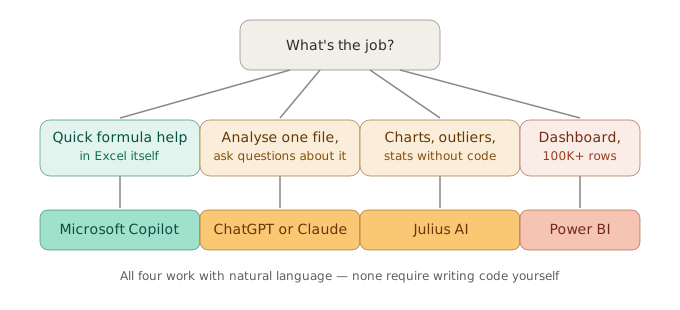
Most people don't need to pick just one of these — the realistic setup is Copilot (or a free add-in) for quick in-sheet edits, plus one upload-based tool for the deeper analysis Excel wasn't built for.
Power BI — when the job stops being a spreadsheet problem
Power BI is Microsoft's business intelligence platform, and its Copilot integration lets you ask questions in plain language and get AI-generated visuals and dashboards back, connected directly to Excel, Teams, and Azure data sources, updating in real time as the source data changes.
This is not a spreadsheet editor, and that distinction matters. If what you actually need is an interactive dashboard that updates automatically and that other people across your team can explore — not a single static report — Power BI is built for that in a way Excel fundamentally isn't.
The honest limitation: the learning curve is real, especially around data modelling and DAX (Power BI's formula language), which genuinely takes weeks to get comfortable with, not hours. Pricing also stacks — Power BI Pro starts around $14/user/month, and the Copilot layer on top requires Premium Per User or a Microsoft Fabric capacity subscription, which is a meaningfully bigger commitment than the other tools on this list.
Who it's for: teams already in the Microsoft ecosystem who need governed, shareable, automatically-updating dashboards rather than one-off analysis.
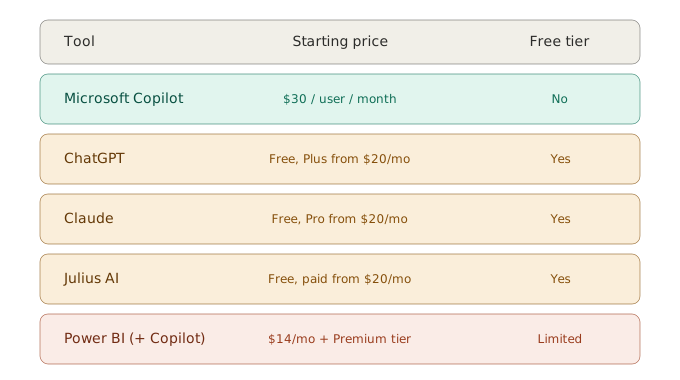
Four of the five tools here have a usable free tier — Copilot is the one exception, since it requires an existing Microsoft 365 subscription before you can add it.
What I'd actually recommend, based on the job
If you're doing the kind of work I used to do — procurement comparisons, MIS reports, cost analysis, vendor evaluation — here's the honest, practical stack:
For quick formula help and monthly report structure inside Excel itself, a native in-sheet tool (Copilot if your organisation already pays for Microsoft 365, or a lighter add-in like Formula Bot if it doesn't) handles the routine work.
For the deeper question — "what's actually unusual in this data, and why" — an upload-based tool earns its place. Julius AI if you want a chart and a statistical answer without writing anything yourself. Claude if what you need is someone to explain or audit the logic of a model you've already built, in plain language, before you trust the numbers in it.
Power BI only enters the picture once you genuinely need a shared, live dashboard rather than a one-time analysis — don't reach for it before that point, since the setup cost in time is real.
What not to do, regardless of which tool you pick
Never let AI be the final, unverified authority on tax, payroll, audit, investor, or compliance numbers. Every guide compiled for this article, across every tool, says some version of the same thing: ask the AI to explain a formula or build a chart, then verify the actual output yourself in Excel, Sheets, or a deterministic calculation. AI-generated analysis is a strong first draft. It is not a substitute for checking your own totals, especially on anything that affects money decisions.
Keep a source copy of every workbook before you upload it anywhere or let an AI tool transform it in place. And before connecting any AI add-in to a workbook containing customer records, payroll, or financial data, confirm where that data actually goes — native tools like Copilot keep data inside your existing Microsoft 365 tenant; third-party web-app tools vary, and their data retention policy is worth an actual five-minute read before you trust them with anything sensitive.
If your work extends beyond Excel — trading, studying, or general job hunting — the broader AI Tools Worth Learning guide covers tools for those too. And if you want a ready-made Excel template for trading or expense tracking instead of building one from scratch, check The Vault →
This guide reflects publicly available pricing and feature information as of June 2026. AI tools in this space update features and pricing frequently — verify current details directly with each provider before purchasing. This is not sponsored content.